
There is a persistent belief that buying a mid-range laptop means accepting a slower machine. For most people, most of the time, that is simply not true. The gap in everyday responsiveness between a mid-tier processor and a flagship one is small enough that you would struggle to identify which is which in a blind test of email, documents and thirty browser tabs.
The compromises are real, but they are somewhere else. They are in the panel you stare at for eight hours, the hinge that has to survive four years of being opened one-handed, the keyboard your fingers land on several thousand times a day, and what happens to all of it when the machine gets warm. Those are the things worth inspecting, and they are the things spec sheets are worst at describing.
Sustained performance is the number nobody prints
A laptop’s advertised performance is its performance in a short burst, when the chassis is cold and the fans have room to spin up. Almost every review benchmark is measured this way. But the work that actually feels slow — a long export, a large compile, a video call that runs for an hour with twenty tabs behind it — happens after the machine has been warm for ten minutes.
What separates tiers here is cooling and power delivery, not silicon. A flagship chassis has more copper, larger fans and a power budget that lets the processor hold a higher clock indefinitely. A cheaper chassis with the same chip will start at the same speed and then settle lower. Whether that matters depends entirely on the shape of your work: bursty tasks never notice, sustained ones always do.
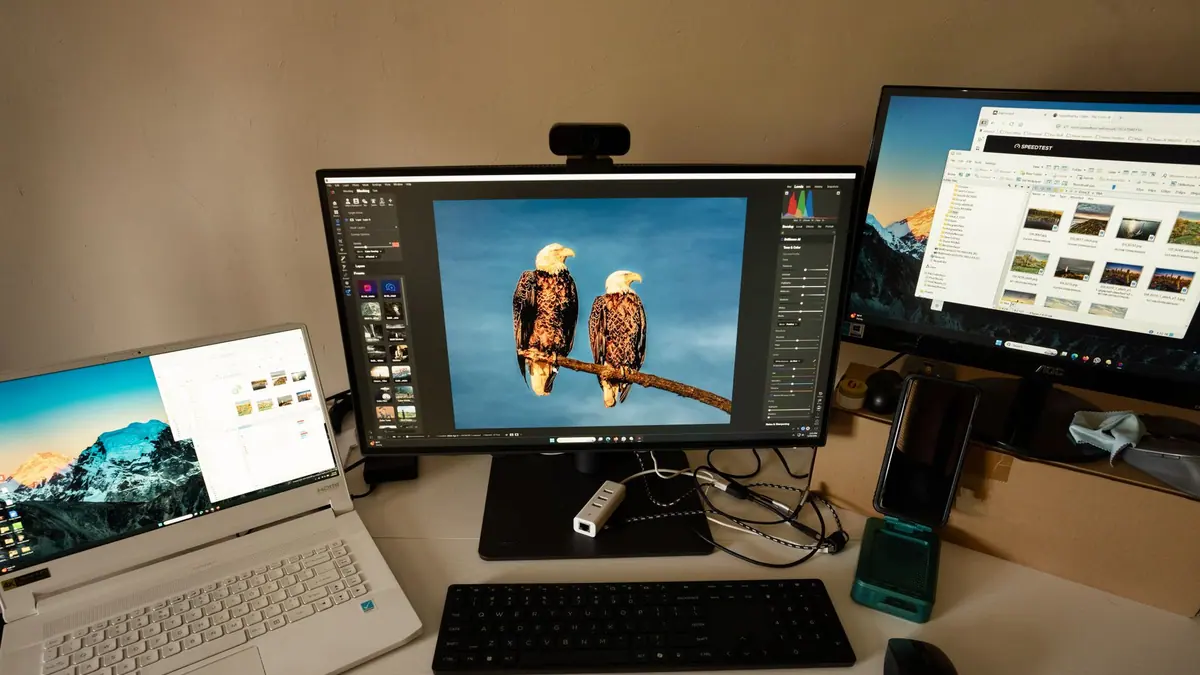
The screen is the compromise you will notice most
If you only check one thing, check the panel. It is the component you interact with continuously, it is expensive to make well, and it is the easiest place to save money without it showing on a spec sheet.
Three properties matter far more than resolution. Brightness decides whether the machine is usable near a window. Contrast decides whether text looks crisp or washed out. Colour accuracy decides whether photographs look like themselves. A modest resolution panel that is bright and contrasty beats a very high resolution one that is dim, and dim panels are the classic mid-range economy.
Matte and glossy is a genuine preference rather than a hierarchy. Glossy looks better in controlled light and becomes a mirror under an office ceiling. Matte scatters reflections and slightly softens text. Decide based on where you work, not on which looks better in a shop — the same room-first logic that runs through buying a television.
Build quality is a four-year question
Aluminium versus plastic gets discussed as though it were about how a laptop feels on day one. It is really about how it behaves in year three. Flex in the keyboard deck is annoying but harmless. Flex in the lid puts stress on the display cable and the hinge, and hinges are the single most common structural failure in portable computers.
The test is simple and you can do it in a shop. Open the laptop one-handed while holding a front corner. Watch whether the base lifts, whether the lid wobbles once it stops, and whether the hinge feels graded or notchy. A hinge that already feels loose in a display unit that is a month old will not improve.
Where the money is genuinely worth spending
| Component | Worth paying up for? | Reason |
|---|---|---|
| Memory | Almost always | Usually soldered now, so it cannot be added later. This is the upgrade you cannot undo. |
| Display panel | Yes | You look at it constantly and it cannot be replaced without a service. |
| Processor tier | Rarely | Everyday responsiveness barely moves. Only sustained workloads notice. |
| Storage | Sometimes | Often replaceable, and external drives are cheap. Check before paying the premium. |
| Chassis and hinge | Yes | Decides whether the machine lasts four years or two. |
| Keyboard and trackpad | Yes | Cannot be improved afterwards, and you use both constantly. |
Memory deserves emphasis. It is the one specification where under-buying is close to irreversible, because it is soldered to the board on the majority of thin machines. Storage, by contrast, is frequently a slot you can revisit, and the premium manufacturers charge for it is the least defensible line on any configuration page. If you want a general framework for decisions of this size, we set one out in five questions before any large purchase.

Who this isn’t for
A mid-range machine is the wrong purchase if your work is sustained rather than bursty — long video exports, large builds, scientific workloads — because you are buying the chassis that throttles first. It is also wrong if you routinely work outdoors or by a bright window, where dim panels become genuinely unusable rather than merely disappointing.
And it is wrong if you are buying to keep the machine for five or six years. At that horizon the hinge, the keyboard and the memory ceiling decide the outcome, and paying up front is cheaper than replacing early. That maths is the same one we walk through in buy it for life versus replace it twice.
What to know before you buy
- Check whether memory is soldered. If it is, buy more than you think you need today.
- Open the lid one-handed. Base lift and lid wobble tell you more about longevity than any spec.
- Find the panel brightness figure, not just the resolution. Dim is the mid-range default.
- Look for sustained benchmarks, not peak ones, if your work runs longer than a few minutes.
- Count the ports you will use daily and add the cost of a dock if they are missing.
- Check the repair situation. Battery and storage access decide whether year four is viable.
Is a last-generation flagship better than a current mid-range machine?
Frequently, yes. The older flagship usually wins on panel, chassis and cooling, which are the things that do not improve year to year. It will lose on efficiency and therefore battery life. If you work plugged in most of the time, the older flagship is often the better machine for the money.
Does more memory make a laptop faster?
Not directly. Memory does not speed anything up when you have enough of it. What it does is prevent the sharp, obvious slowdown that happens when you run out and the system starts swapping to storage. It is insurance against a cliff rather than a boost.
How much storage do I actually need?
Less than manufacturers would like you to buy, provided the drive is replaceable and you are willing to use external storage for archives. If the drive is soldered, treat it like memory and buy up. If it is a standard slot, buy the smallest sensible size and revisit it later at a fraction of the price.
The useful way to approach this category is to stop shopping by processor name. Decide first whether your work is bursty or sustained, then check the panel, then check the hinge, then buy as much memory as the machine will ever hold. Everything else is easier to fix later, and the machine you are still happy with in year four will be the one that got those four things right.